FluidVoice
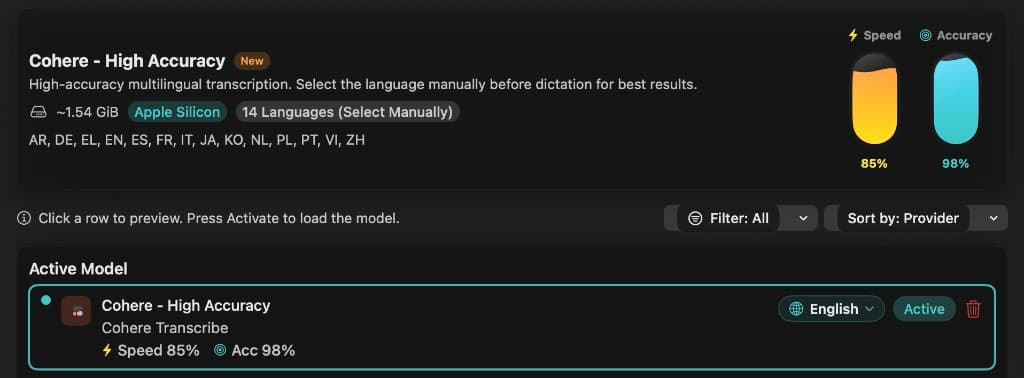
Hold a shortcut, speak, and the transcript appears in the app you are already using. FluidVoice runs locally, so the audio stays on your machine.
Downloads, videos and channels to keep using after Saturday. More files from the session will land here as we add them.
Hold a shortcut, speak, and the transcript appears in the app you are already using. FluidVoice runs locally, so the audio stays on your machine.
Type one prompt and send it to ChatGPT, Claude, Gemini, Grok and Perplexity at the same time. It uses the accounts you are already signed into in Chrome, so there are no API keys.
Use it when computer use / agent mode is on. It will download the ZIP, load the unpacked extension in Chrome, and pin it for you.
Install the ChatMultiAI Chrome extension for me using computer use. It is not in the Chrome Web Store, so you have to sideload it.

Do this in order, and stop if you get stuck:

1. Open this page: https://github.com/inspiretelapps/ChatMultiAI/releases/latest
2. Download the asset named ChatMultiAI-extension.zip from the latest release.
3. Unzip it into an easy folder, for example Downloads/ChatMultiAI-extension.
4. Open Google Chrome.
5. Go to chrome://extensions
6. Turn on Developer mode (top right).
7. Click Load unpacked.
8. Select the unzipped folder that contains manifest.json — not the ZIP file itself.
9. Confirm ChatMultiAI appears in the extensions list and is enabled.
10. Pin it to the Chrome toolbar: click the puzzle-piece Extensions icon, then pin ChatMultiAI.

If Chrome asks for confirmation, approve it. When you are done, tell me where the unzipped folder is and that the extension is pinned.
Give it a YouTube playlist and get your own website of summaries, takeaways and chapter links. GitHub hosts it and runs the updates — nothing has to stay on your computer.
Paste this into ChatGPT or Claude. If it can use GitHub or a browser, it can do the setup. Otherwise it will walk you through the clicks.
Help me set up my own YouSummary website from this template:
https://github.com/inspiretelapps/vidbot-template

I'm not technical. Read the current README and setup files first, then help me get a working website. Use plain language and keep explanations short.

First, ask whether I already have a GitHub account. If not, explain briefly what GitHub is and guide me through creating a free personal account at https://github.com/signup, including email verification. I'll enter passwords and verification codes myself; don't ask me to share them in chat. Don't assume I know terms such as repository, Actions, Pages, or secret — explain each simply when needed.

Once my account is ready, ask me for my GitHub username, my YouTube playlist link, and what I'd like to name my library. Check whether you have tools that can access my GitHub account. If you do, carry out the setup steps your access allows. If you don't, guide me through one small step at a time with clear links and button names. Never claim you changed a setting or deployed something unless you verified it.

Create a new public repository in my account from the template, with an empty library. Work only in my new copy. I understand that the website, playlist links, and saved summaries will be public. If the name is already taken, ask before using an existing repository.

Help me obtain an OpenCode Zen API key and save it as the GitHub repository secret OPENCODE_API_KEY. Don't ask me to paste keys into this chat or into a file; direct me to the secure GitHub settings page. I'll handle sign-in, account creation, and any payment details myself.

Use DeepSeek V4.1 Flash unless I choose a Google Gemini option. Read the exact supported model IDs from the template's current update workflow. Use GitHub Pages for the website, with its publishing source set to GitHub Actions. Keep updates manual; no scheduled jobs or WhatsApp delivery.

Test one video from my playlist first. If YouTube captions fail, explain the issue simply and help me choose between adding a Supadata key as SUPADATA_API_KEY or uploading a transcript. Explain any extra service costs before I enable it. Don't invent a summary when captions are unavailable.

Run the first update when the required settings are ready. Check the run result, open the published website, and verify that a real summary and its chapter links are present. An empty website alone is not a completed test. If your tools cannot perform a step, tell me exactly what to click and continue once I've done it.

Finish by giving me my website link, my GitHub repository link, and a short explanation of how to update my library next time. Clearly state anything that still needs my attention.
The polished paid dictation app if you want a premium option. It types into any app and cleans up the text as you speak.
See how much Cursor, Claude and Codex you have left, from the menu bar. The official app is for Mac. Most people in the room are on Windows, so here is the Windows port as well.
An open-source desktop agent from Nous Research. It keeps memory, can browse, and lives on Telegram, WhatsApp and the rest of your apps.




A short list from the workshop. Subscribe, then pick the voices that earn the time.

Clear n8n, agent and automation walkthroughs you can copy into real work.
@leonvanzyl
Four operators arguing through AI, markets and what it means for business.
@allin
Long interviews with founders, researchers and people inside the labs.
@TheDiaryOfACEO
Fast AI tool demos and vibe-coding sessions, useful when you need to see it done.
@rileybrownai
Internet business ideas, community and how small teams ship products.
@GregIsenberg
Short, sharp videos on code, tools and the AI stack.
@Fireship
Andrew Warner talking to people building AI companies, with the playbooks they use.
@TheNextNewThingAI
Agency operators and AI systems for running a service business.
@JordanPlatten
Buying back time, hiring, and putting AI into the way you run the company.
@danmartell
Weekly AI news and tools, filtered for what is actually worth trying.
@mreflow
Afrikaans AI from South Africa — tools, walkthroughs and what is actually usable here.
@pietjbot
Moonshots, abundance and where AI is going, from the founder of XPRIZE.
@peterdiamandisA short written recap of the four blocks, with the examples we used in the room.
Coming soonThe short list of apps worth keeping, and the ones you can ignore for now.
Coming soonA few articles and references for people who want the longer version after the workshop.
Coming soon